Documentation
This guide covers the main features of OrbitDeck for iOS. OrbitDeck is organized as a sidebar of screens grouped into Live, Passes, Analysis, Operating Tools, Sky & Space, and Catalog & Configuration.
Getting started
On first launch, OrbitDeck downloads a satellite catalog and sets a default station. To get useful results:
- Set your station location in Settings.
- Add a few satellites to your favorites from the Satellites screen (for example the ISS and an active FM or linear bird).
- Open Home to see live look angles and your next qualifying pass.
Setting your station
Your observer station drives every observer-relative screen: Track, passes, MUF, mutual visibility, and more. Open Settings → Observer station.
Location source
Choose how OrbitDeck resolves your position:
- Fixed site — a named location you enter and edit manually. This is preserved and is the default.
- Always use current location — OrbitDeck follows your device's GPS. While following, the station is named
Current location, its fields are managed automatically, and your fixed site is preserved so switching back restores it exactly.
Entering coordinates
In fixed mode you can enter your position three ways:
- Type a latitude and longitude in decimal degrees.
- Type a Maidenhead grid square (4, 6 or 8 characters, e.g.
FM18orFM18lv) and tap Set. OrbitDeck places you at the grid center. - Tap Use Current Location for a one-time fix.
Set your altitude in meters for the most accurate look angles.
Grid squares & VUCC
OrbitDeck shows your six-character Maidenhead locator wherever your station is displayed, including the Station card on Home.
Under ARRL VUCC rules, a station physically on the line between two grid squares may count both, and a station on the corner where four grids meet may count all four. When your position is on a boundary, the Home Station card lists every grid you may claim, labeled On grid line or On grid corner.
Location, DXCC & subdivisions
While you are following your current location, OrbitDeck reverse-geocodes your position and adds three rows to the Home Station card and to Settings → Observer station, and to the Grid Finder readout:
- DXCC — your current DXCC entity (prefix and name).
- Primary subdivision — your state/province.
- Secondary subdivision — your county/district.
The subdivisions use the names LoTW/TQSL expect. Notably, Connecticut resolves to the correct legacy county (from your town) rather than the newer census "planning region," and the independent cities of Virginia, Maryland (Baltimore), Missouri (St. Louis) and Nevada (Carson City) are named correctly and kept distinct from same-named counties.
Times & display
By default all times are shown in UTC, the amateur-satellite convention. Under Settings → Display you can enable Show times in local time to display every time in your device's zone instead, following your 12/24-hour preference. Pass lists (Daily Schedule, Next Passes, Home upcoming favorites) then show the other zone as an unobtrusive secondary clock. Tiny BASIC always uses UTC.
The same Display section has a Keep screen awake on Home option, which prevents auto-lock while the Home screen is showing so you can leave it up as a live display during a pass.
Satellites & catalog
The Satellites screen lists the catalog and lets you mark favorites, which drive the Home dashboard and all-sky radar. The New Launches screen surfaces recently launched objects.
Choose your element source in Settings → GP element source:
- AMSAT — the AMSAT daily bulletin GP feed (default).
- CelesTrak — select a group such as the amateur satellites set.
- Custom — a URL to your own OMM JSON.
You can also add manual satellites and transponders, and recover elements from a state vector using the Tools screen.
Passes & tracking
- Home — live look angles, the next qualifying pass, and your favorites' upcoming passes.
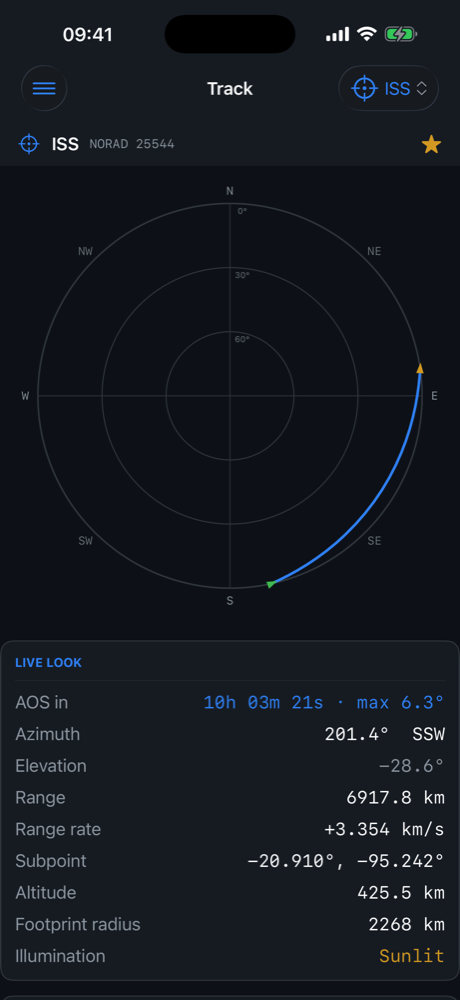
- Track — a real-time polar sky plot; toggle north-up or compass-up. AOS/LOS and the live position are shown as small direction-of-travel arrows.
- Daily Schedule — every favorite's passes grouped by day and ordered by AOS. It opens snapped to the next pass, keeps a week of past days above, and fills in as it computes.
- Next Passes and Pass Detail — pass lists with polar plots and elevation-vs-time profiles.
- Ground Track — the sub-point path with a live heading marker and a geographically accurate footprint (the true 0°-elevation boundary) on a map.
- Pass Progression — passes across the coming days.
- Sky Radar — every favorite plotted on one all-sky chart.
- Grid Finder (Live) — a high-precision GPS tool that guides you onto a Maidenhead grid line or corner with a compass arrow and a proximity map, for VUCC roving.
Set the minimum elevation in Settings to filter marginal passes.
Radio & Doppler
The Radio screen provides:
- A four-dial DX Doppler display and a single-station RX/TX Doppler playbook.
- Per-satellite calibration. Your calibration is a single combined oscillator correction (radio plus satellite) that you can measure from either the downlink or the uplink; both offsets fold into the receive dial and nothing is added to the transmit dial. It is stored per satellite and applied to every live Doppler readout, with an unobtrusive note when it is in effect.
- A link budget with a per-elevation margin curve.
- Transponder listings from the SatNOGS database, with two-way transponders shown first.
The Calibrations screen (Catalog & Configuration) is a bulk editor: an editable downlink/uplink table for every satellite, favorites first and searchable, with CSV import and export for entering many calibrations at once.
The Home Live Doppler card also carries a passband tuning slider for linear transponders (centered by default; an inverting transponder walks the uplink the other way), and an unobtrusive Calibrate this satellite expander with downlink/uplink calibration sliders shared with the Calibrations editor.
Rig control (CAT)
OrbitDeck can Doppler-tune your transceiver directly over a Bluetooth LE serial adapter or an Icom network (Wi-Fi) connection — a single full-duplex radio, a single uplink/downlink radio, or two radios. It also follows the operator's dial (the "One True Rule"), and can drive any Hamlib-supported radio through a rigctld network connection. Configure it in Settings → CAT / rig control and control it from the Home Rig control card. See the dedicated Rig Control page for supported radios, adapters and tuning options.
Rotator control
OrbitDeck can also steer an az/el antenna rotator to follow the pass — GS-232, Easycomm I/II/III, SPID and SAEBRTrack over a Bluetooth LE serial adapter, or rotctld (Hamlib NET, TCP), PstRotator (UDP) and OZ9AAR URC (TCP/JSON) over the network. It pre-positions before AOS, can lead the bird by a few seconds to cover mechanical lag, parks on LOS, and handles flip mode and 0–360 / −180…+180 / 0–450° azimuth ranges, with alignment offsets, magnetic correction, a deadband and minimum-elevation gating. Configure it in Settings → Rotator control and control it from the Home Rotator card. See the dedicated Rotator Control page for protocols, connections and pointing options.
Logging & uploads
OrbitDeck keeps a satellite QSO log on device with a Home Log QSO quick-entry card (prefilled from the selected satellite, transponder and your grid) and a dedicated Log screen. It uploads to LoTW — signing the .tq8 on device from your imported callsign certificate (.p12) — and to a self-hosted Cloudlog/Wavelog, with ADIF import/export and automatic LoTW satellite-name normalization. See the Logging & Uploads page.
Digital modes & audio
With a USB audio interface (or an Icom network-audio radio) connected, OrbitDeck can record a pass, decode SSTV (with its own image gallery and Photos export), and work full-duplex FT4 on a linear transponder — decoding the downlink while transmitting the uplink, with a live Doppler-corrected RX/TX tune readout for operating without CAT and optional automatic per-satellite transponder calibration, keying PTT over CAT or via a manual-PTT indicator. FT4 runs at nearly 100% duty cycle, so the app reminds you to limit power. See the Digital Modes & Audio page.
Activations, QRZ & AMSAT status
Activations (hams.at)
The Activations screen lists upcoming satellite activations from hams.at. For each, Can I work it? checks the mutual-visibility window from your station, Operating detail opens the paired sky plots, and Star satellite adds the bird to your favorites.
You can also post your own activation: tap Post an activation to hams.at, choose the satellite, and enter your callsign, grid(s) and the pass time. You may enter the observer position as a Maidenhead grid or as latitude/longitude, and activate a grid line (2 grids) or corner (4 grids). Posting requires your personal hams.at API key (from the hams.at Settings page), entered in Settings → hams.at or on the posting screen and stored in the iOS Keychain. OrbitDeck posts only when you confirm; the alert is public and attributed to your callsign.
QRZ lookup
The QRZ Lookup tab looks up a callsign's name, location and grid using your QRZ XML-subscription credentials (entered in Settings).
AMSAT status
The AMSAT Status screen shows the community status board (who has heard what, over a selectable window) and lets you file an attributed report for the selected satellite. You can also report status with one tap from the Home screen's Report AMSAT status card — all report types (Heard, Telemetry Only, Not Heard, Crew Active). Reports are public and attributed to your callsign and grid, and are only sent after you confirm.
Orbital analysis
The Analysis group includes orbital elements and derived quantities (J2 nodal and apsidal rates, beta angle, eclipse fraction, local time of the ascending node), equator crossings, Sun/Moon transits, illumination, orbital zones, conjunctions, AO-7 mode timing, mutual-visibility windows, and workable-grid discovery.
Space weather & propagation
Space Wx shows live values: 10.7 cm solar flux, planetary Kp and the A index from NOAA SWPC, and the sunspot number from the hamqsl.com solar feed (N0NBH), with NOAA as a fallback — this is the sunspot number the amateur community references. It also shows geomagnetic condition and aurora likelihood. MUF / HF Prop and the operating outlook use these to summarize HF and 6 m conditions. Space weather refreshes automatically when stale and on returning to the app.
OSCARLOCATOR
The OSCARLOCATOR Sim reproduces the classic azimuthal-equidistant tracking overlay, in both polar and QTH-centered projections, with minute ticks along the ground track. Reference Orbits lists the schedule, and you can export printable OSCARLOCATOR sheets as PDF from Exports.
Bench tools
The Tools screen collects more than 60 calculators for antennas, feedline, RF, link budgets and orbits. It also includes:
- A receipt-tape scientific calculator with a DEG/RAD toggle, metric-prefix literals (for example
100k,2.2n), anAnsregister, and RF/orbit helper functions. - A graphing calculator with trace, root finding, an integral readout, a data table, and CSV export.
- A grid ↔ lat/lon converter, a full Tiny BASIC interpreter with live satellite data and graphics, and a DXCC lookup.
Exports & alarms
The Exports screen produces PDF and CSV/XLSX files for passes, site comparisons and OSCARLOCATOR overlays, sharable via the standard iOS share sheet. You can also schedule a local pass alarm; OrbitDeck requests notification permission only when you first schedule one, using the lead time set in Settings.
Data sources
OrbitDeck retrieves data from public services and identifies itself politely:
| Service | Used for |
|---|---|
| CelesTrak | General Perturbations (GP) orbital elements |
| AMSAT | Daily bulletin GP feed and status reports |
| NOAA SWPC | Solar flux, planetary Kp and A index (and sunspot number as a fallback) |
| hamqsl.com (N0NBH) | Observed sunspot number (the amateur-community reference) |
| SatNOGS | Transponder database |
| hams.at | Upcoming satellite activations; posting your own alerts |
| QRZ (optional) | Callsign lookup, if you provide credentials |
| Space-Track (optional) | Archival elements for Orbital History, if you provide credentials |
| hams.at API key (optional) | Posting activation alerts, if you provide your token (stored in the iOS Keychain) |
OrbitDeck honors CelesTrak's usage policy — at most one request per dataset every two hours, with back-off on rate-limit responses — so normal use will not get your address blocked. Catalog and transponder data also refresh automatically about once a week.
Troubleshooting
No passes or empty screens
Confirm your station location is set correctly and that you have added favorite satellites. Lower the minimum elevation if you expect marginal passes.
Space weather shows blank K or A
OrbitDeck refreshes space weather when it is stale or on returning to the app. If values are blank, tap the refresh control on the Space Wx screen; a connection is required for the first fetch.
Location not updating
If you chose "Always use current location," ensure OrbitDeck has Location permission in the iOS Settings app. You can switch back to a fixed site at any time without losing it.
Compass heading looks off
Compass-up mode uses true heading, which requires a location fix to correct for magnetic declination; allow a moment after enabling it.